Record outcomes
Log what an appearance led to, then see every outcome attributed back to the appearance that produced it.
Transcript: Outcomes in 20 seconds
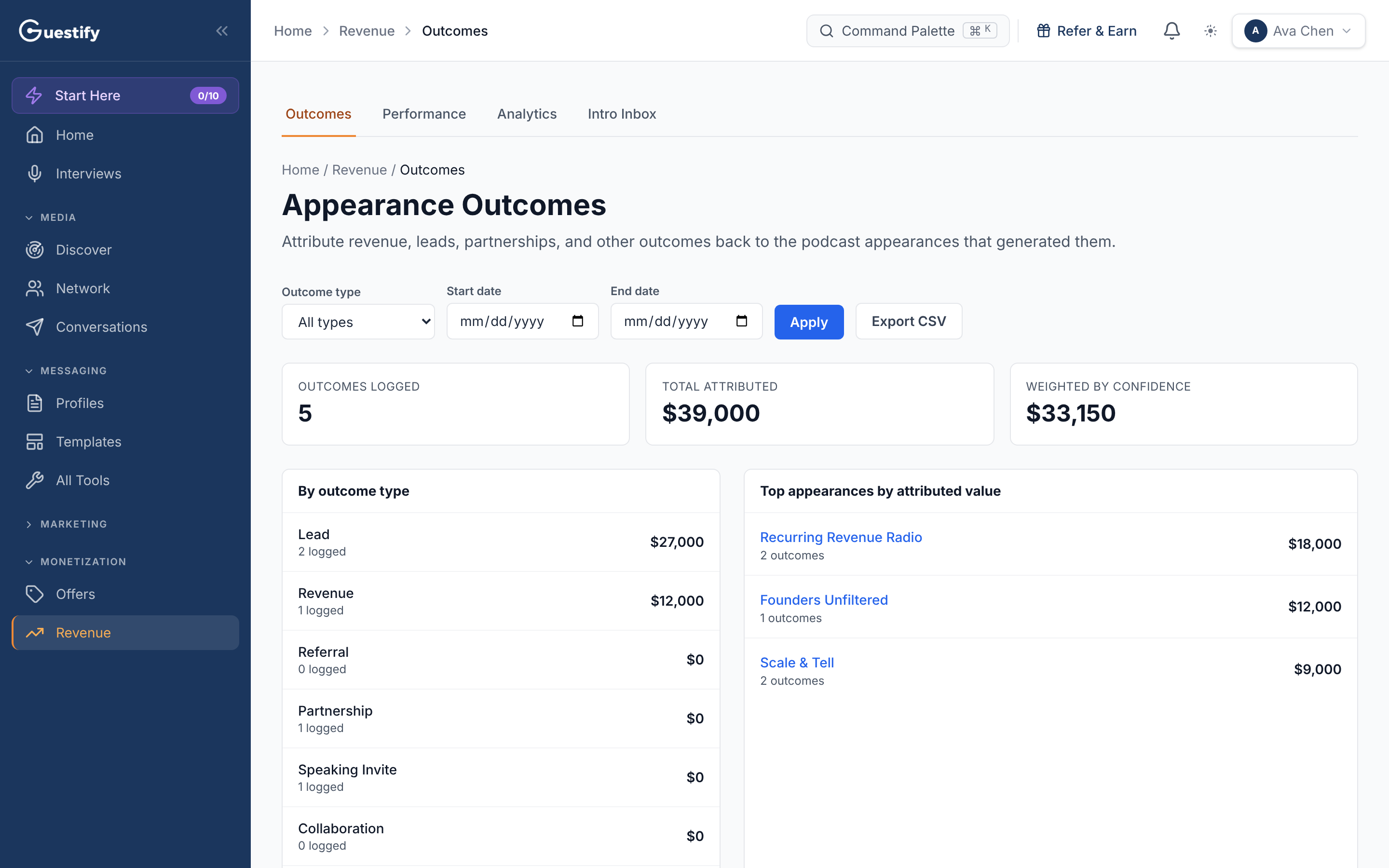
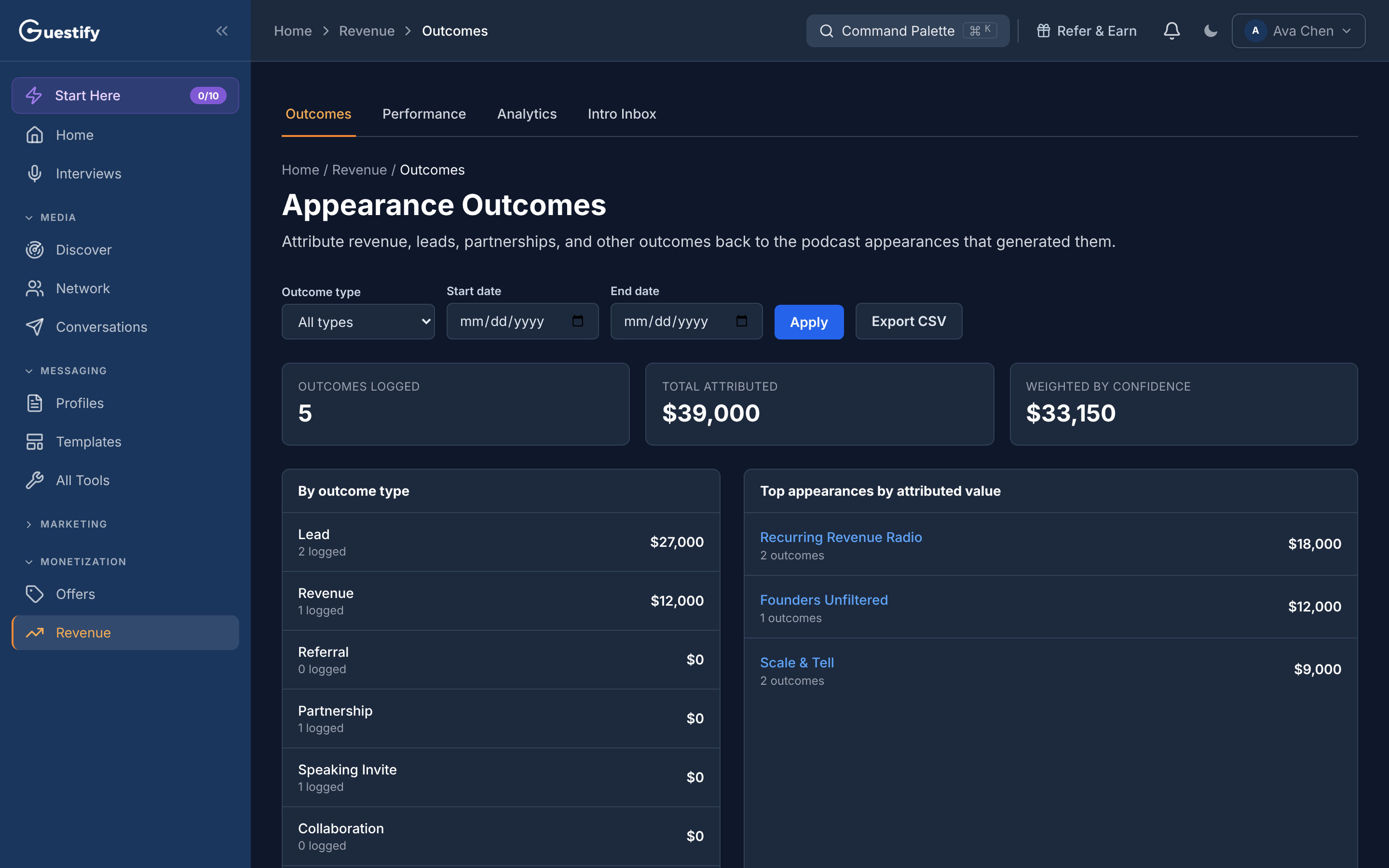
Revenue, then Outcomes, connects results back to the appearance that produced them: revenue, leads, partnerships, referrals and speaking invites. See totals by outcome type and the appearances that brought in the most, filter by date, and export everything to a spreadsheet.
Revenue › Outcomes is a report. It attributes revenue, leads, partnerships and other outcomes back to the appearances that produced them. You log each outcome on the appearance itself.
When your episode airs
Once a booked show's record date has passed, Guestify checks the show's feed each day for your episode, for up to six months, if the show has a feed. When it finds one, a notification says Your episode looks live or Did your interview air?, with Review episode. Confirm it with Link Episode on the interview's Listen tab: the card moves to Aired with the real air date. Nothing moves to Aired until you confirm it. You can also move a card to Aired yourself and link the episode next.
Log an outcome
There are three places to log one:
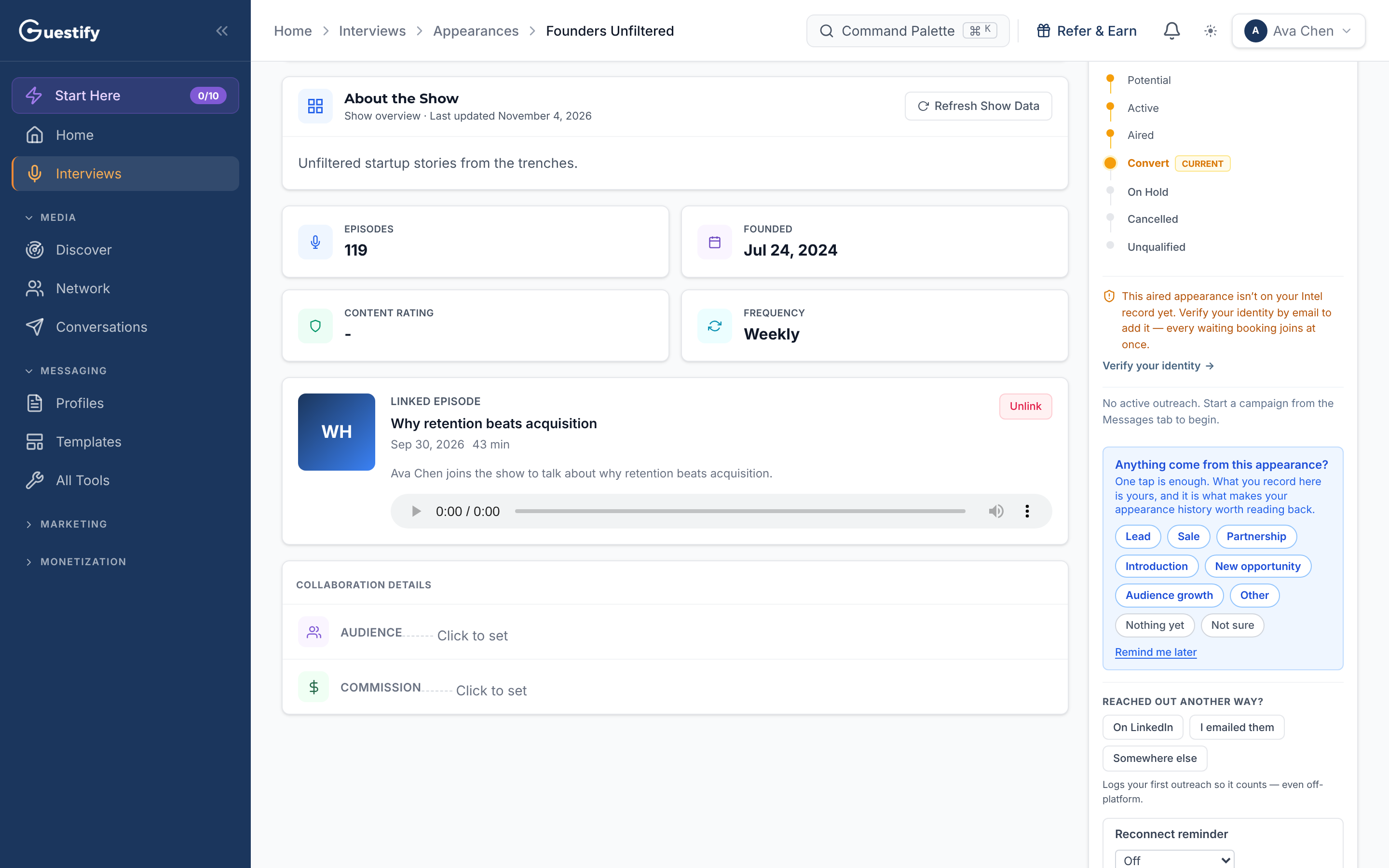
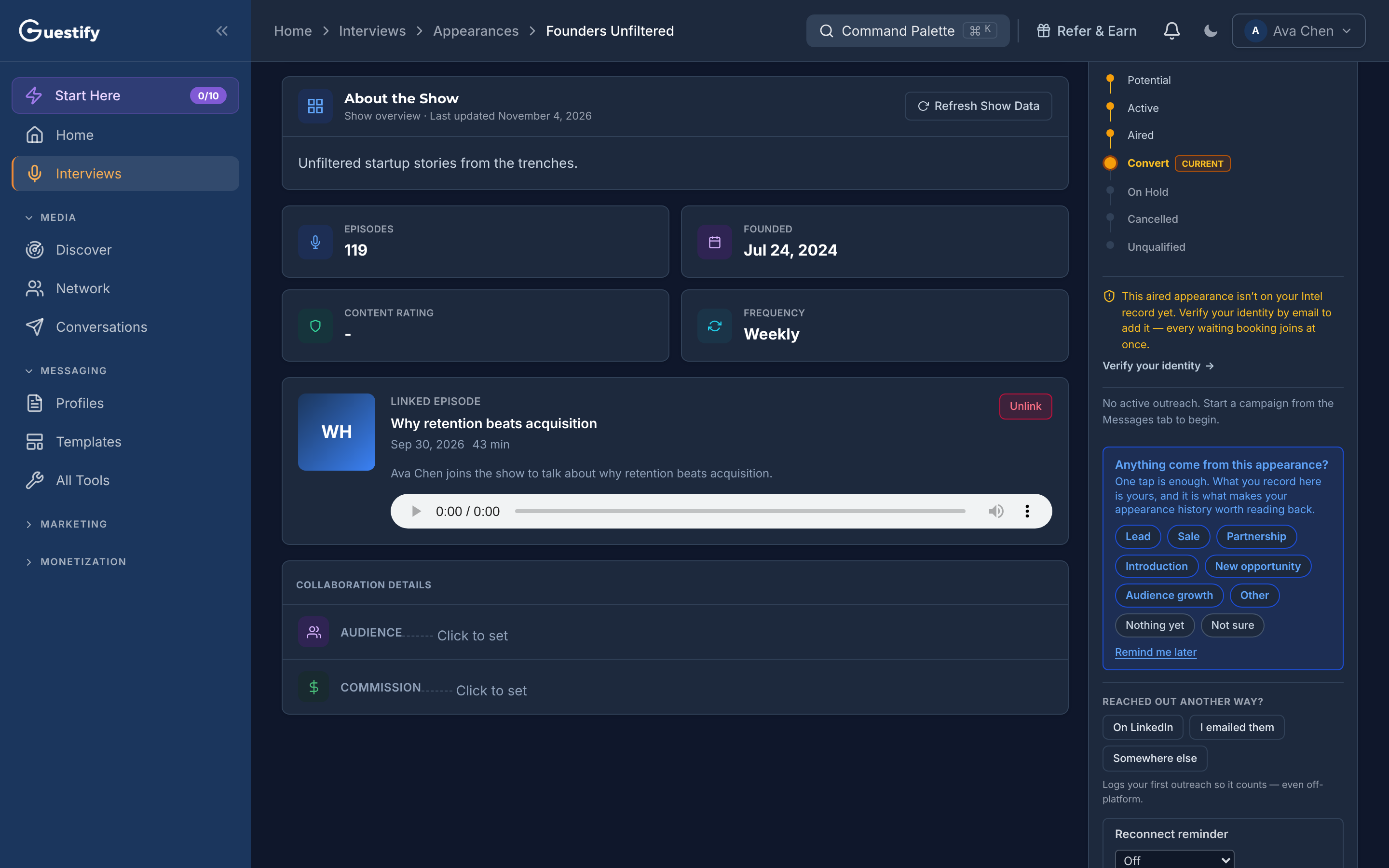
- On an aired appearance. Open an appearance with the Aired or Convert status. Its Overview tab can ask Anything come from this appearance? Pick what happened (for example Lead, Sale, Partnership or Introduction), or Nothing yet, Not sure or Remind me later, then Add detail if you want to.
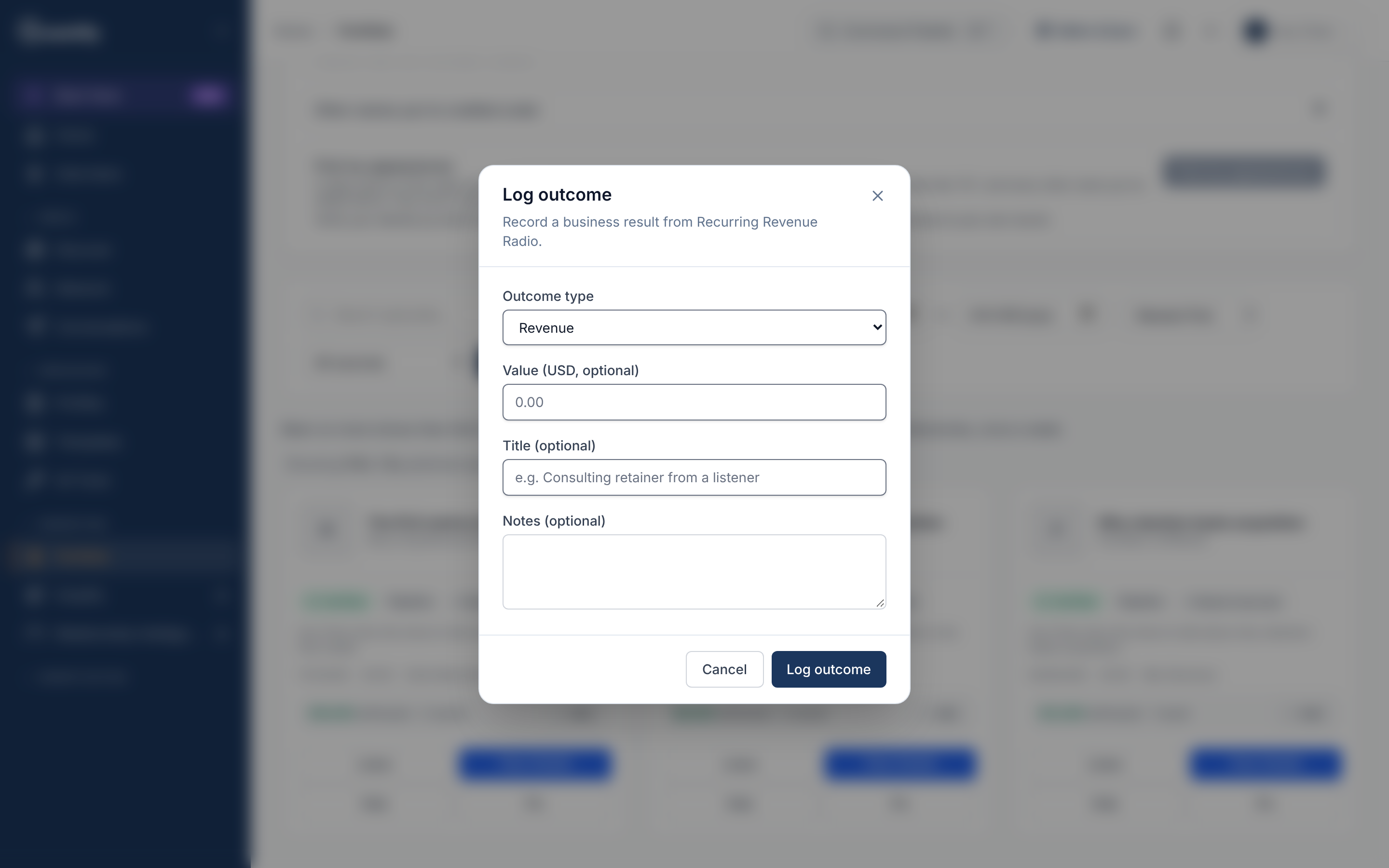
- From the Guests tab of an appearance. Click Log Outcome next to a guest, choose the Outcome type, and add a Value (USD, optional), a Title and Notes.
- From your Portfolio. Each published episode's card has Log outcome (or Add, once it has results). It opens the same form.
Transcript: The outcome ask in 15 seconds
Once an interview has aired, its Overview asks: Anything come from this appearance? One tap records a lead, a sale, a partnership or an introduction, or Nothing yet. Not sure stops the asking. Guestify asks again in your notifications thirty and ninety days after it aired.
Transcript: Logging an outcome in 15 seconds
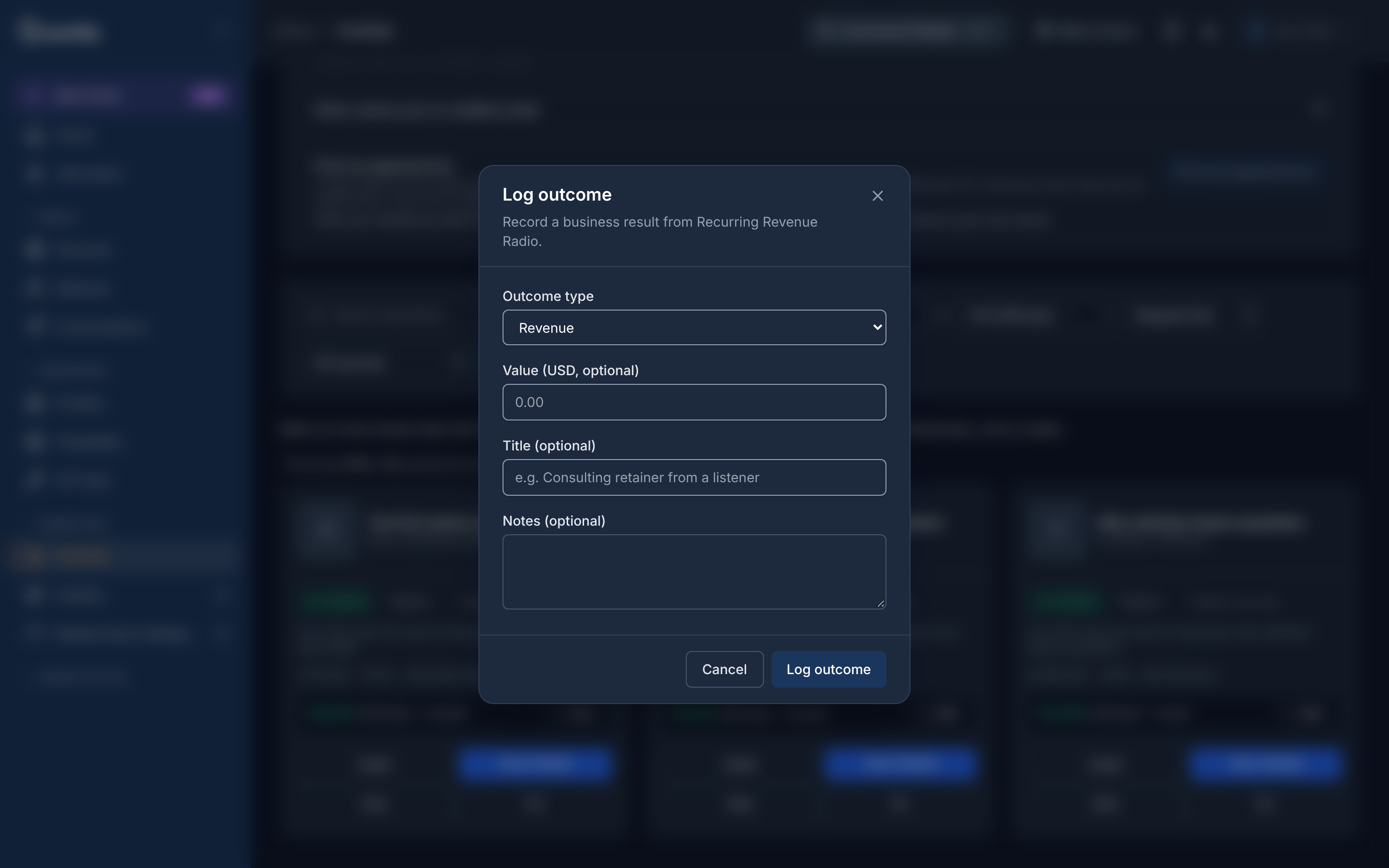
When an appearance pays off, log it. In Portfolio, choose Log outcome on a published episode, pick the outcome type, and add a value, a title and notes if you like. It's counted in Revenue, Outcomes.
Outcome types are Referral, Partnership, Lead, Revenue, Speaking Invite, Collaboration, New opportunity, Audience growth and Other.
Guestify asks again
Nothing yet means the question comes back later, Not sure stops it, and Remind me later brings it back in two weeks. Unless you answered Not sure, Guestify asks again in your notifications 30 and 90 days after the air date, then every few months for about a year and a half, with Record what came of it. Logging an outcome doesn't stop the asking: results often keep coming.
Read the Outcomes report
- The totals at the top count Outcomes logged, the Total attributed value, and the value Weighted by confidence.
- By outcome type gives the count and value for each type.
- Top appearances by attributed value ranks the appearances that brought in the most.
- Outcome log lists every outcome with its date, type, appearance, value, confidence and notes.
Filter by Outcome type and a Start date and End date, then click Apply. Export CSV downloads the outcomes as a spreadsheet file.
Agencies
The report follows the workspace you're in: one client's outcomes in that client's workspace.