Agency: client reports
Schedule branded reports for your clients in Agency Hub, choose what they cover and how often they go out, and preview, pause or download them.
Transcript: Client reports in 15 seconds
Agency Hub, Reports, sends branded reports to your clients. Name one, pick its type, how often it goes out, the client and the recipients, and it's emailed on that schedule. Preview or pause any scheduled report from the list.
Open Agency Hub and choose the Reports tab. Like the rest of Agency Hub, it's for owners and admins.
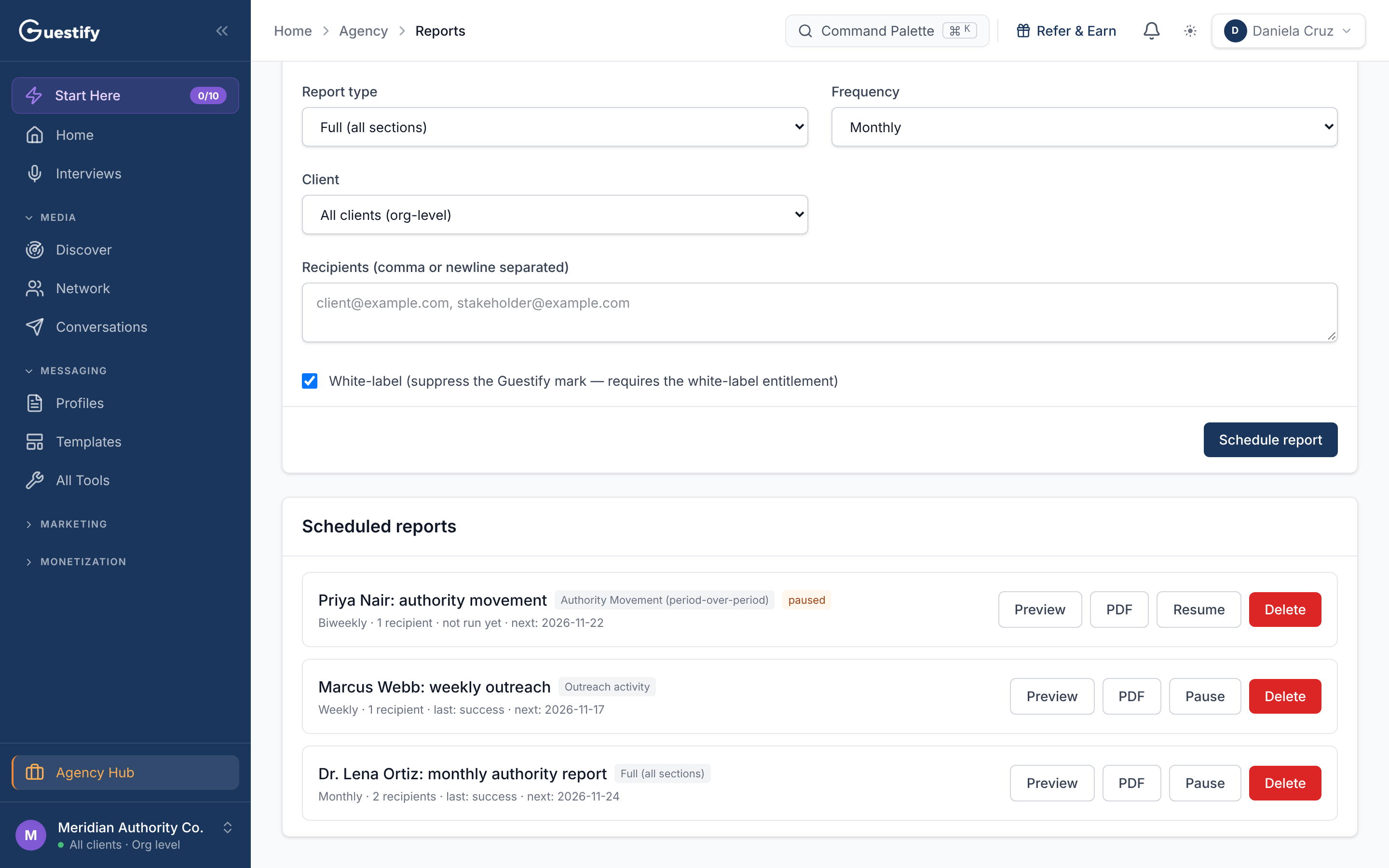
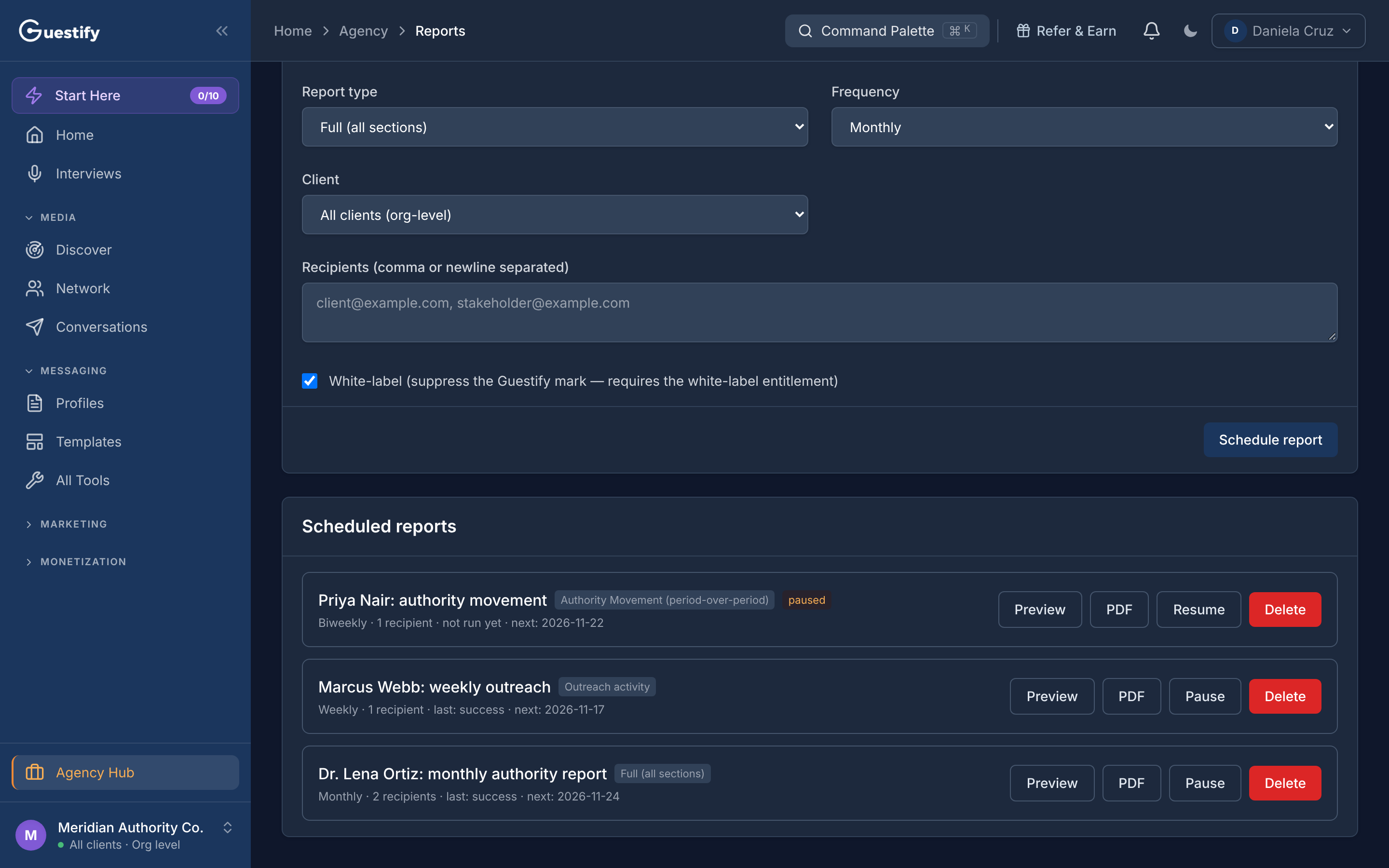
Schedule a report
Branded reports are emailed to the recipients you choose, on the schedule you choose. The report arrives in the body of the email, not as an attachment.
Name it and choose what it covers
Give the report a Name, then pick a Report type: Full (all sections), Performance & outcomes, Outreach activity, Media kit performance, Authority, or Authority Movement (period-over-period).
Choose how often and for whom
Set the Frequency: Weekly, Biweekly, Monthly, or On demand (no schedule). An on-demand report is never emailed; you open it from the list when you want it. Under Client, pick one client, or All clients (org-level).
Add the recipients
List the Recipients, separated by commas or new lines.
Decide on branding and save
Leave White-label ticked to leave the Guestify mark off the report, if your account includes white-label. The report's look follows your branding settings. Click Schedule report.
Your scheduled reports
Scheduled reports lists each one with its type, frequency, how many recipients it has, how its last run went (or not run yet) and when it runs next. From each row:
- Preview opens the report as it stands now.
- PDF downloads it as a PDF. Each download uses one of your monthly exports.
- Pause stops it going out, and Resume starts it again. A paused report is marked paused.
- Delete removes it.
Client Authority Map
The Client Authority Map card at the top is made on demand for the client you have selected: where they stand, their recognition gaps, which shows already have a relationship path, and what to pursue next. Open a client's workspace, then use Preview or Download PDF. A map uses credits, charged once per client until it needs refreshing. The PDF includes only what your organization holds, so a copy you leave with a client never contains your private network.